4. Manual statistical configuration
This lesson turns the clusters from lesson 3 into an executable forecast contract. You create a monthly profile, configure each location-cluster × material-cluster combination, and validate a preview without persisting a Demand Plan.
Configuration decisions
- Monthly bucket: matches the 36-month historical grain.
- 12-period horizon: produces one year of future projections.
TONUOM: converts Sales history inKGthrough the validated global relationship 1 TON = 1,000 KG and lets planners analyze the forecast in tons.- Holt-Winters: represents monthly level, trend, and seasonality.
- 1,095 historical days: covers approximately three scenario years.
- Historical Sales split: the Community model that disaggregates an aggregate forecast to material-location series.
Manual does not mean arbitrary coefficients
The model is selected manually, but Alpha, Beta, and Gamma stay on Automatic selection in this lesson. Fix coefficients only when a backtest, comparison criterion, and governance process support that choice.
1. Create the monthly profile
- From Home, open Demand Planning.
- Open Demand Execution Profiles.
- Choose New profile.
- Enter:
| Field | Value |
|---|---|
| Profile ID | DP_MONTHLY_TUTORIAL |
| Description | Monthly demand profile — paper tutorial |
| Bucket size | Monthly |
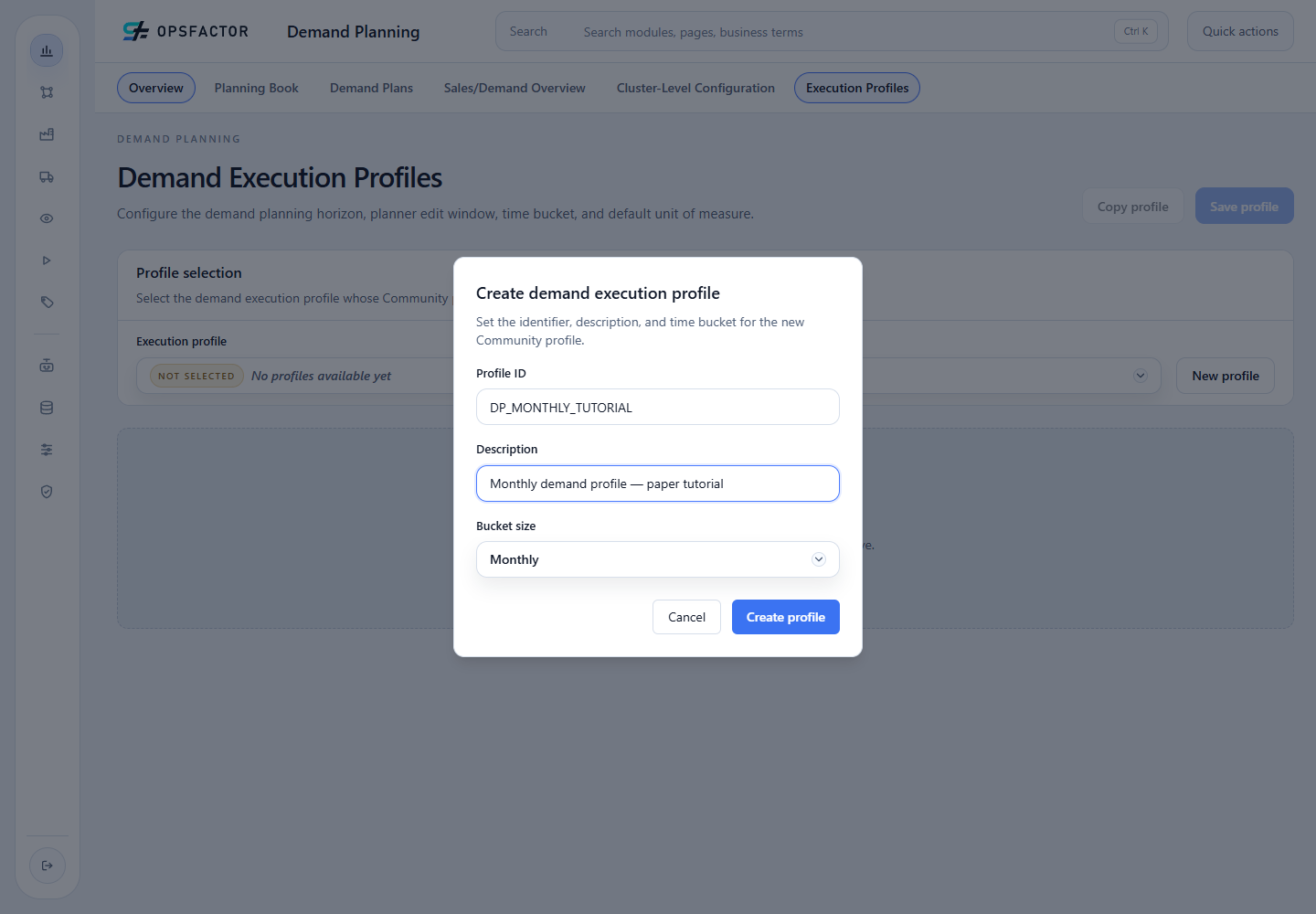
Review the ID, description, and bucket before creating the profile.
- Choose Create profile.
- In the loaded form, keep Historical sales document type = Sell-out.
- Select Default UOM = TON.
- Enter Planning horizon in periods = 12.
- Choose Save profile and wait for confirmation.
In Community, MAPE aggregation, a fixed edit horizon, and AutoFit remain marked Pro/Enterprise. Do not treat them as part of this workflow.
2. Open cluster-level configuration
- Under Demand Planning, open Demand Planning Cluster-Level Configuration.
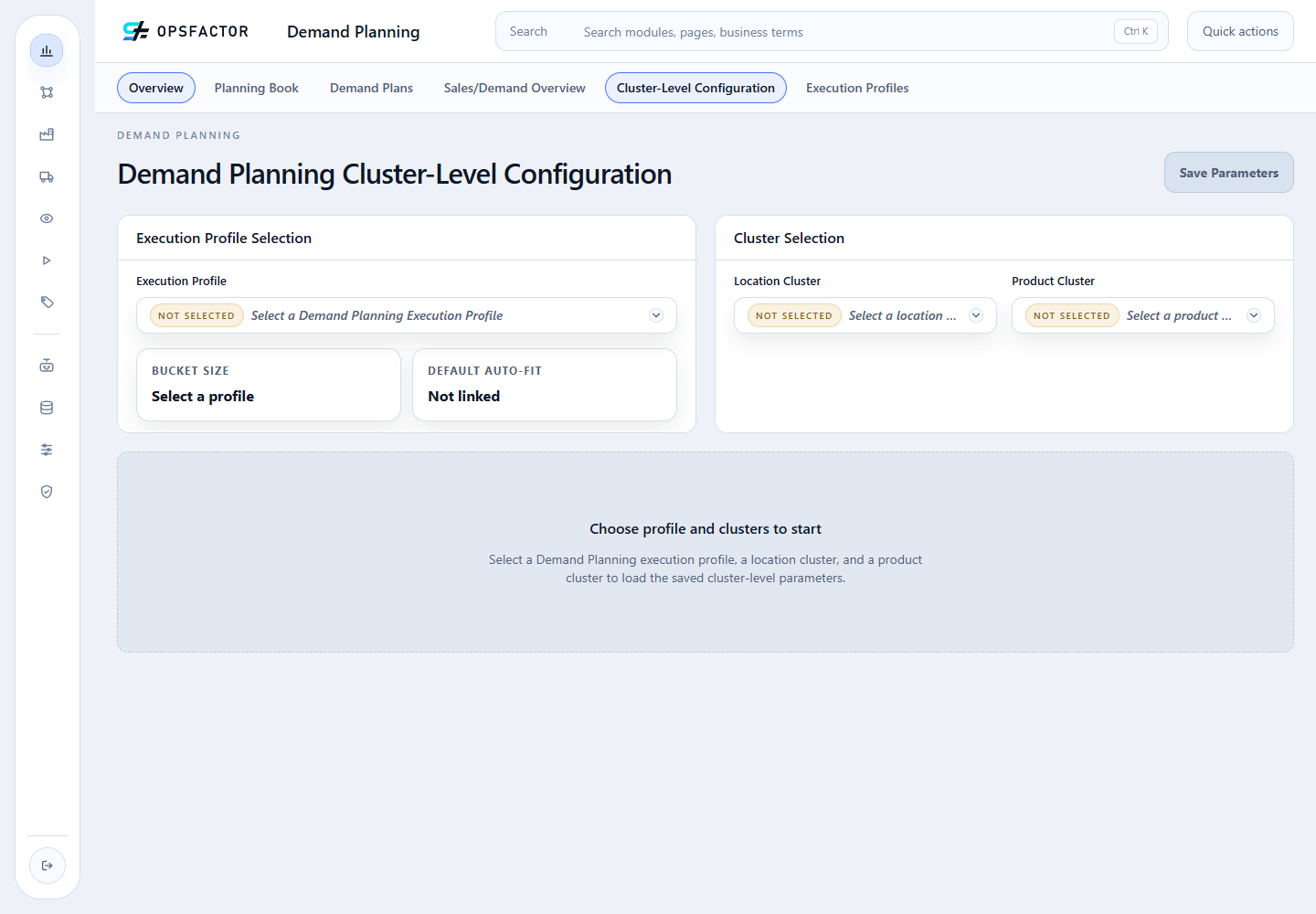
This is the real screen before selecting the three objects. Not Selected is not an error: it means the parameter editor will load only after the execution profile, location cluster, and material cluster have been chosen.
- Select Execution Profile = DP_MONTHLY_TUTORIAL.
- Select Location Cluster = Demand — All Customer Regions.
- Select Product Cluster = Demand — White Paper Finished Goods.
- Wait for the saved configuration to load before editing.
3. Configure white paper
Fill the Community fields:
| Section | Field | Value |
|---|---|---|
| Cluster Selection | Execute Demand Plan | on |
| DFU Split | Split Model | Historical Sales |
| DFU Split | Days for Top-Down Split | 1,095 |
| Forecast Model Parametrization | Forecast Model | Holt-Winters |
| Forecast Model Parametrization | Unit of Measure | TON |
| Holt-Winters | Alpha, Beta, and Gamma | Automatic selection |
| Sales History and Coverage | Days of Historical Sales | 1,095 |
| Sales History and Coverage | Consider inactive DFUs | off |
| Sales History and Coverage | Generate forecast for out-of-line products | off |
Choose Save Parameters and wait for the success message. Outlier, uplift, stockout, AutoFit, and advanced aggregation options are locked because they are outside the Community capability boundary.
4. Generate the white-paper preview
- Set Reference Period to
2027-01-01. - Choose Generate Forecast Preview.
- Confirm the response contains material-location series and that history and forecast are visually distinct.
- Read the error cards at the selected lag and the detail table.
- Do not conclude the model is good merely because it returned numbers. Check seasonality, bias, and series without a sales reference.
The preview uses the real statistical backend but does not create a Demand Plan.
5. Configure tissue
- Change only Product Cluster to Demand — Tissue Paper Finished Goods.
- Wait for the new combination's configuration to load.
- Repeat the same model, UOM, windows, and coverage settings.
- Choose Save Parameters.
- Generate the preview for
2027-01-01and confirm the material scope contains only the two tissue finished goods.
Interpretation and governance
Both clusters start with the same model to support a controlled comparison. This does not prove Holt-Winters is the permanent winner. A mature process compares out-of-sample error, investigates bias and stability, records exceptions, and revisits parameters when demand behavior changes.
Unit failures, missing history, or empty clusters must stop validation. Never accept an all-zero preview as silent success.
Checkpoint
- monthly
DP_MONTHLY_TUTORIALprofile with 12 periods andTONsaved; - Holt-Winters parameters saved for both cluster combinations;
- Alpha, Beta, and Gamma on automatic selection;
- 2027 previews generated and read without creating a Demand Plan;
- AutoFit, advanced treatments, and plan execution remain out of scope.
The next lesson, still under construction, creates the Planning Book collaboration view. Return to the course map.