1. Installation and first login
This training starts after you have downloaded the OpsFactor Community Edition installer. By the end, the platform will be installed on your computer and you will have completed the first login with the administrator user.
If you have not downloaded the installer yet, visit the Community Edition page and complete the download before continuing.
1. Open the installer
- In the Downloads folder, double-click the installer file.
- If Windows asks for permission to make changes to the computer, select Yes.
- Wait for the Prepare this installation screen.
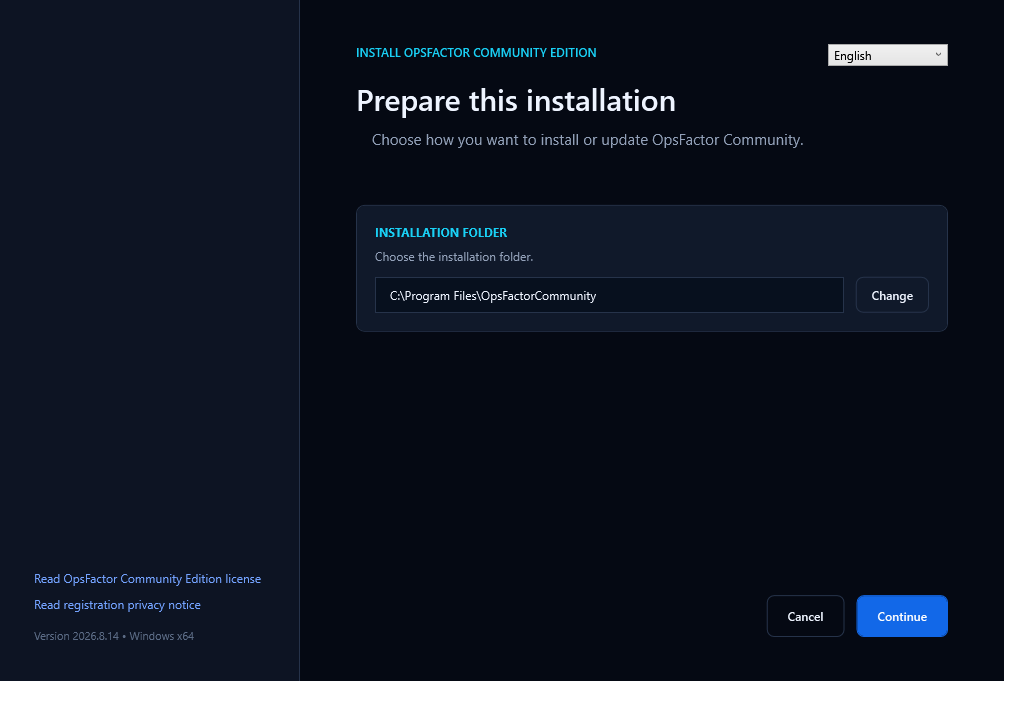
2. Choose the language and folder
- In the upper-right corner, select English.
- Keep the suggested folder. Use Change only if your company requires a different installation location.
- Select Continue.
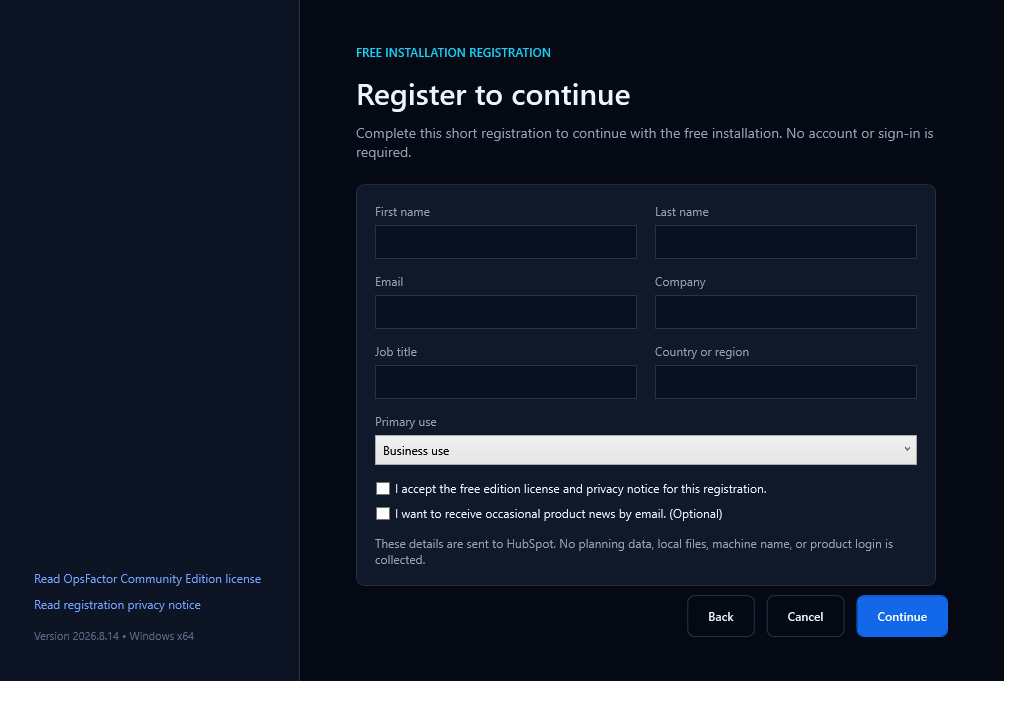
3. Register the free installation
- Enter your first name, last name, email, company, job title, and country or region.
- Under Primary use, select the option that best represents your use.
- Accept the license and registration privacy notice.
- Receiving product news by email is optional.
- Select Continue.
Installation registration
This registration enables the free installation. You will define the user used to log in to the platform later in the process.
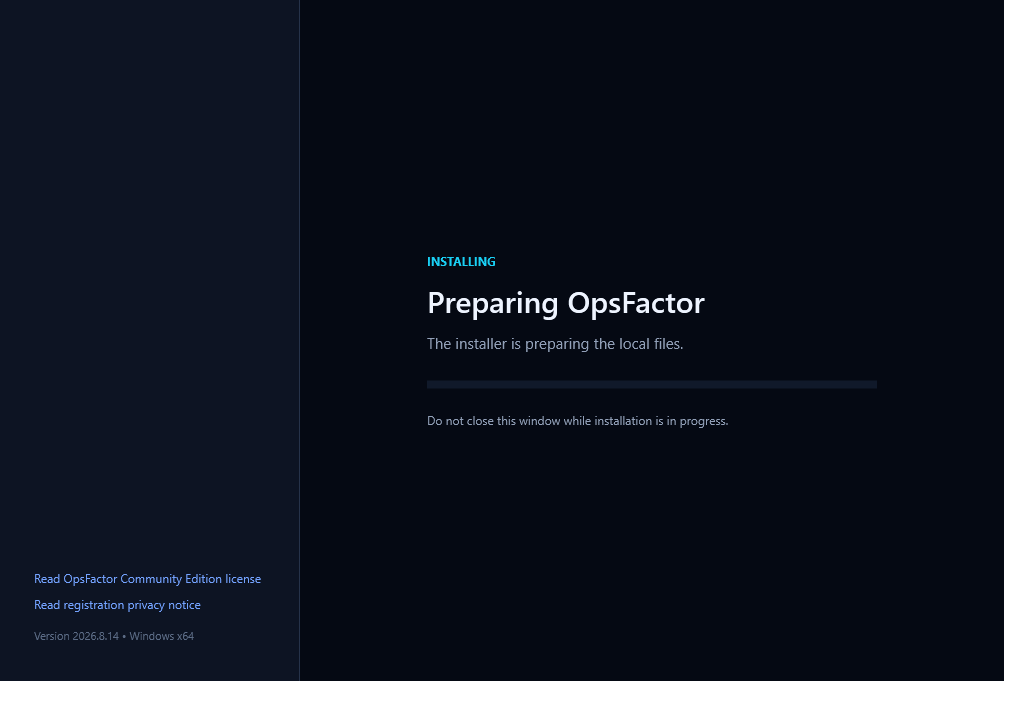
4. Wait for the installation
The installer will prepare the application on the computer. Do not close the window during this step.
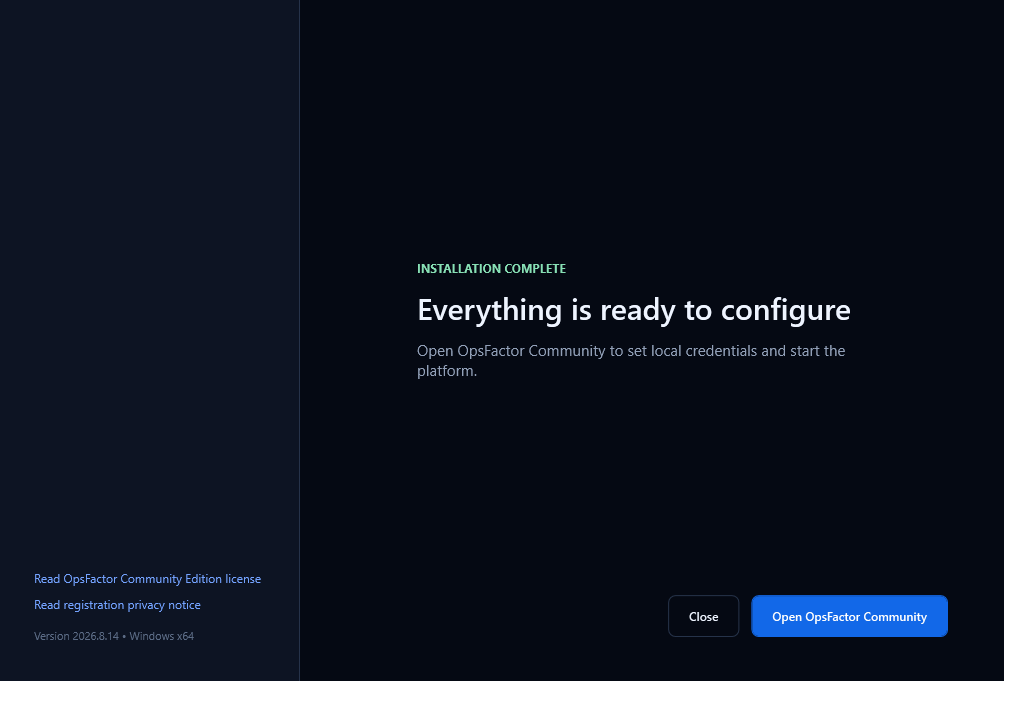
When Everything is ready to configure appears, select Open OpsFactor Community.
5. Define the initial access
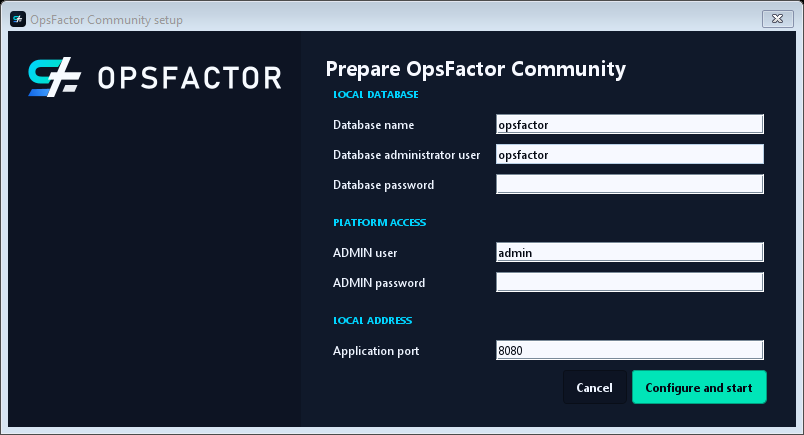
On the Prepare OpsFactor Community screen:
- Keep Database name as
opsfactor. - Keep Database administrator user as
opsfactor. - Create a Database password with at least 10 characters and store it safely.
- Keep ADMIN user as
admin, or choose the administrator name that will be used for the first login. - Create an ADMIN password with at least 10 characters. This is the password used to log in to the platform.
- Keep Application port as
8095unless your IT team instructs you to use another value. - Select Configure and start.
Store both passwords
The database password and the ADMIN user password serve different purposes. Store both in a password manager approved by your company.
6. Log in to the platform
- Wait until the local control reports that OpsFactor is ready.
- Select Open platform.
- On the login screen, enter the ADMIN user and ADMIN password defined in the previous step.
- Select Sign in.
Checkpoint
Before continuing, confirm that:
- the OpsFactor Community Edition home page opens in the browser;
- you can sign in with the administrator user you created;
- the platform does not yet contain the tutorial scenario data.
Return to the course map or continue with Training 2 — Demand data load.