9. Collaborate and adjust the Demand Plan
The Planning Book combines the statistical forecast and collaboration. Direct Demand is Baseline + Demand Adjustment. Baseline stays read-only. The view from chapter 8 selects ten finished goods and two Central Region customers by identifier, giving 20 combinations.
1. Open the plan and view
Open Demand Planning > Planning Book.
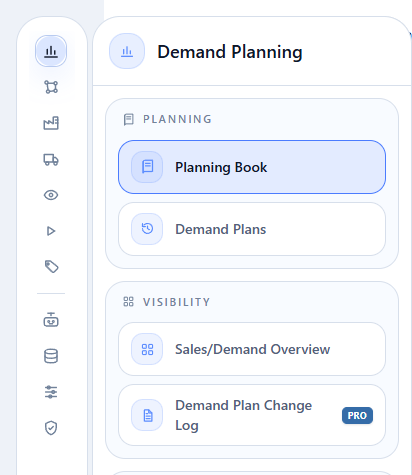
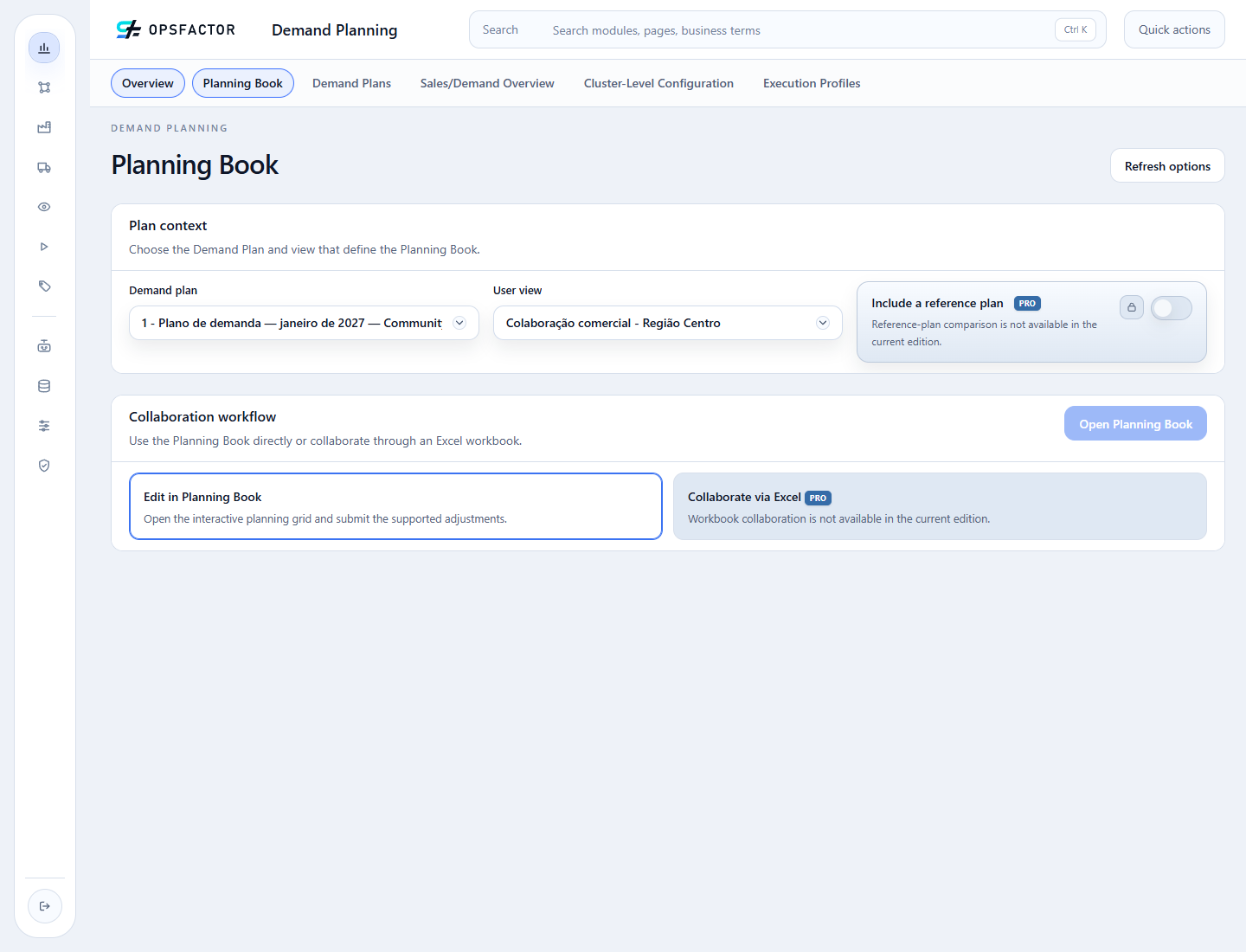
Select the plan generated in chapter 7 and Colaboração comercial - Região Centro, then click Open Planning Book. The captures show plan 1, named
Plano de demanda — janeiro de 2027 — Community 2026.09.22 PT, and the view
Colaboração comercial - Região Centro. Your environment assigns its own ID.
2. Read the grid
Location ID, Material ID, and Key Figure identify each row. Four gray columns contain September–December 2026 history; the plan starts in January 2027. Scroll horizontally to browse the months. Identity columns are not frozen in this edition.
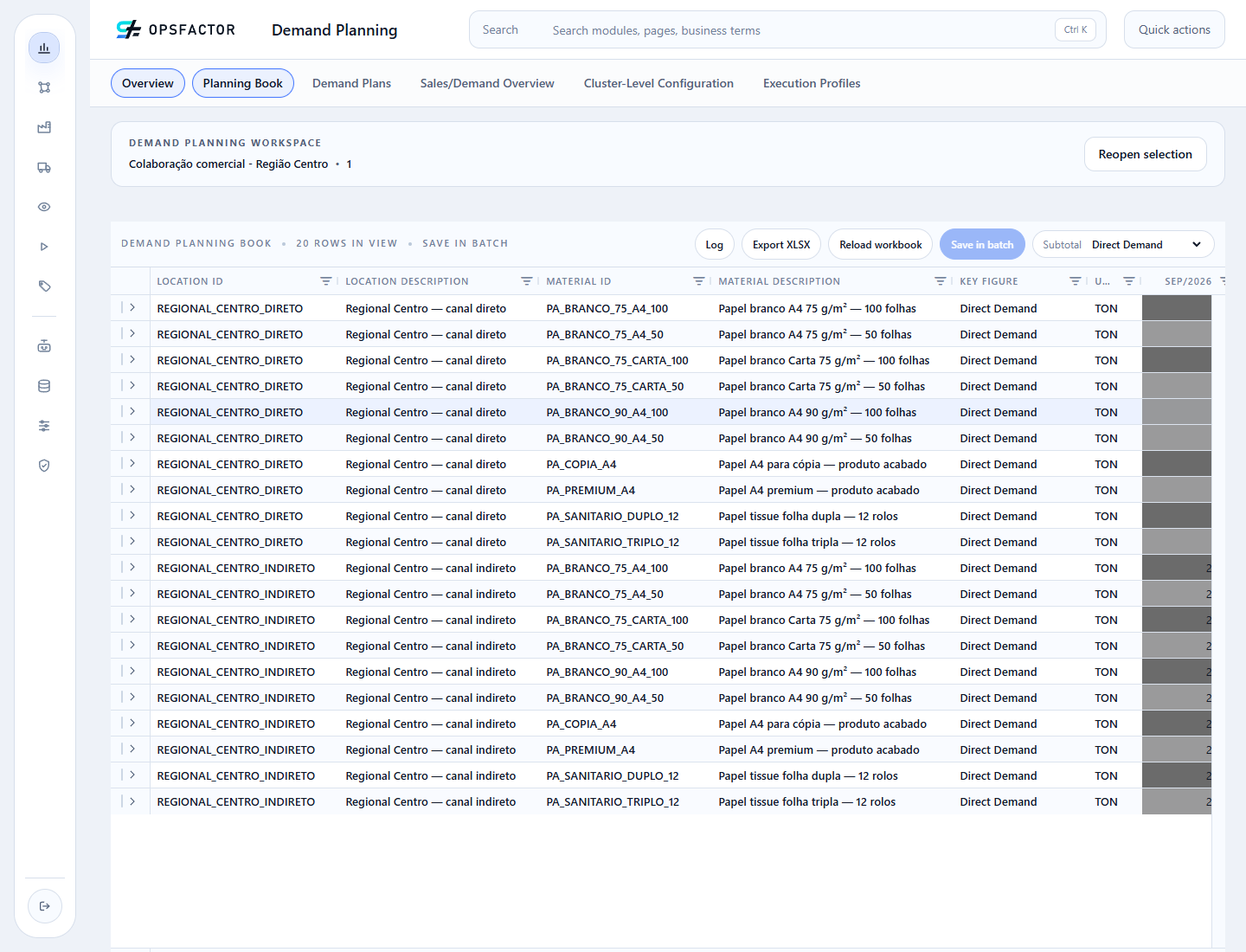
Subtotal selects the Key Figure summed in the footer. Keep Direct Demand. The total follows the rows that pass the grid filters.
3. Isolate the exercise combination
Open the Material ID header filter and enter PA_COPIA_A4. In the
Location ID filter choose Equals and enter REGIONAL_CENTRO_DIRETO.
Exact matching distinguishes the direct and indirect channels. Expand the
combination using its left arrow to read Direct Demand, Baseline, and
Demand Adjustment.
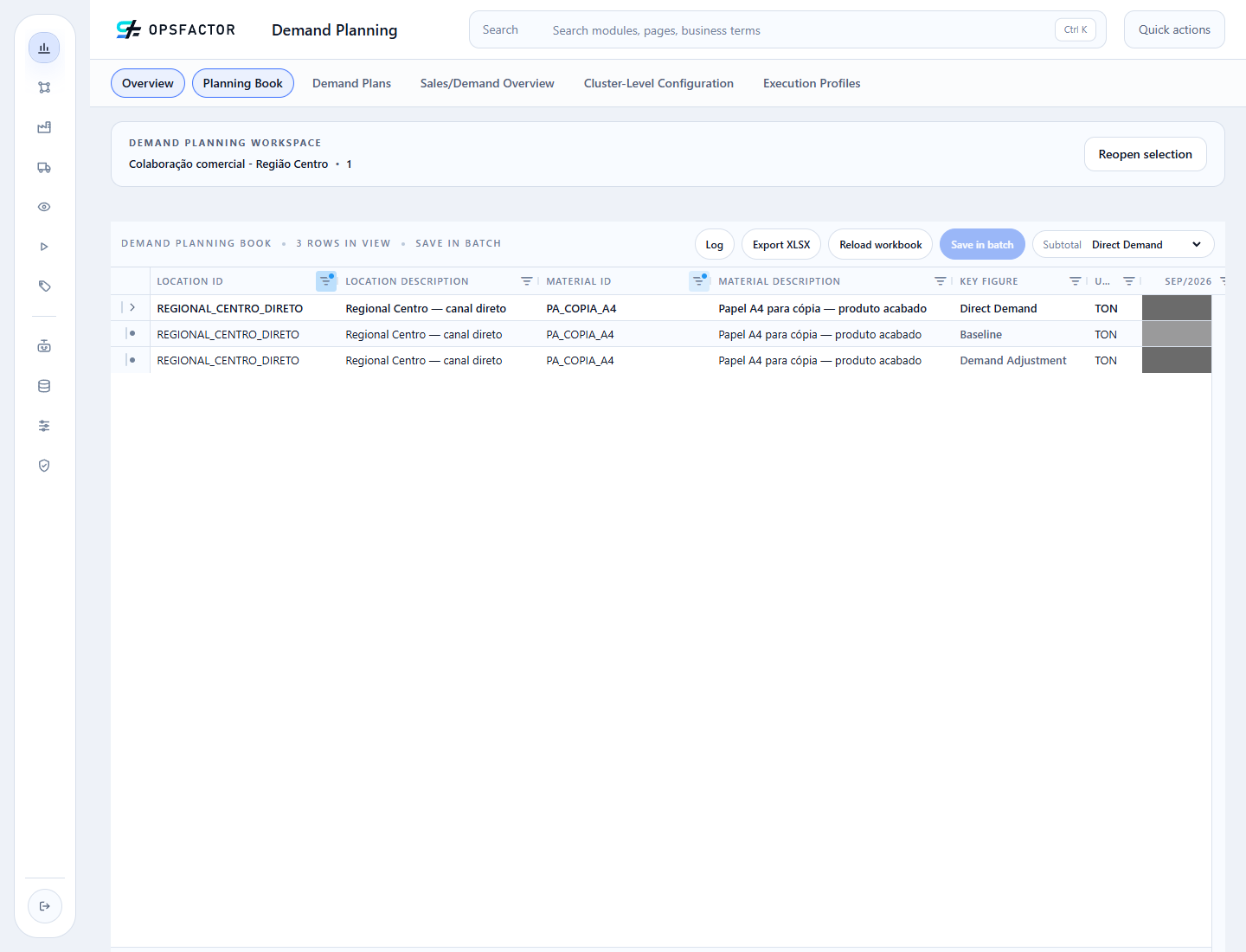
The value captures below show these same three rows after scrolling to January, February, and March. Header filters restrict the current grid; the saved view still contains its 20 pairs.
4. Enter the increases
Values in TON for PA_COPIA_A4 / REGIONAL_CENTRO_DIRETO:
| Period | Baseline | Desired adjustment | Expected Direct Demand |
|---|---|---|---|
| January 2027 | 8.613374529461787 | +1.00 | 9.61 |
| February 2027 | 8.847123775299002 | +1.50 | 10.35 |
| March 2027 | 9.110353151557765 | -0.50 | 8.61 |
Double-click January in Demand Adjustment, enter 1, and press Enter.
Repeat for February with 1.5. Changes remain pending until Save in batch;
the button count shows how many cells will be submitted. Save both increases.
5. Enter the reduction through the total
In Community 2026.09.22, a negative value entered directly in Demand Adjustment is clamped to zero. To reduce the plan, edit Direct Demand with the new total, which must remain nonnegative. The application calculates the difference and records it as a negative adjustment.
For March, reduce 9.110353151557765 to 8.610353151557765. Double-click
Direct Demand, enter the new total, and press Enter. Click Save in batch (1) to save this reduction. Demand Adjustment becomes -0.50 TON
while Baseline remains unchanged.
6. Reopen and reconcile
Use Reopen selection and open the same plan and view again. Reapply the material and location header filters and compare all three rows. The first panel identifies the DFU; the second shows its monthly values:
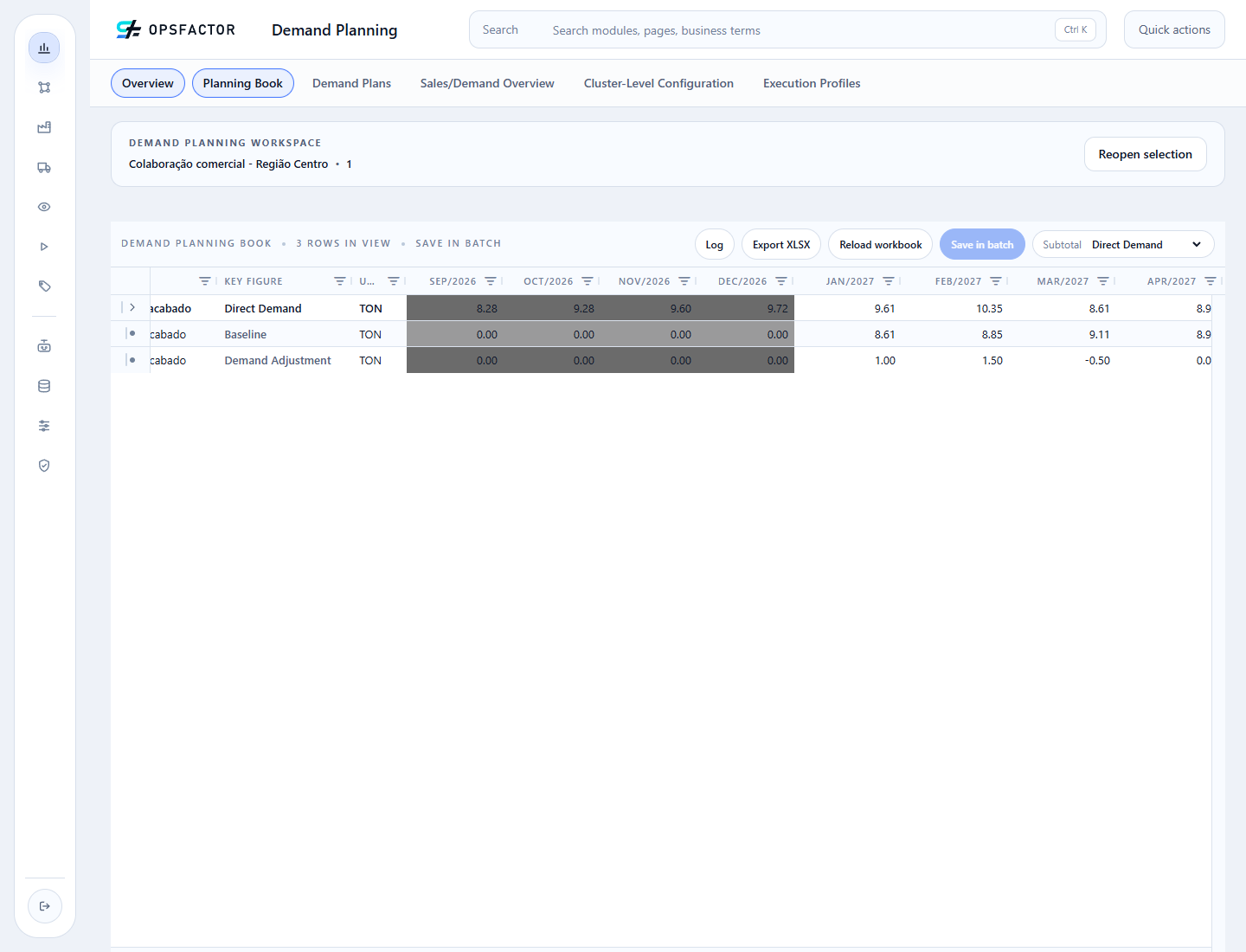
The displayed totals are 9.61, 10.35, and 8.61 TON. Calculations retain
the full Baseline precision; round only when comparing with the screen.
Completion criterion
Confirm adjustments +1, +1.5, and -0.5 in the reopened plan, with Baseline
unchanged. Clear the header filters to return to the 20 combinations.
Return to the collaboration view or continue to review and export.