14. Load initial inventory
Initial inventory is the quantity available at the start of the reference
date. It connects the preceding physical state to the first Supply Plan
bucket. Because the tutorial plan starts on January 1, 2027, the snapshot must
use exactly 2027-01-01.
Materials, locations, and the UOM must already exist from chapter 2. Load inventory after the production, network, and policy data from chapters 11–13.
Original file and field glossary
Keep the download identical to the application export: headers, sheet names, column order, types, values and native formatting. The field tables explain the literal technical names outside the workbook. Configured descriptions and IDs are scenario data, not translations applied after download.
Why the date must match exactly
The Supply Planning service retrieves inventory on the plan start date. A row
dated 2026-12-31 or 2027-01-02 does not replace 2027-01-01.
Open Stock
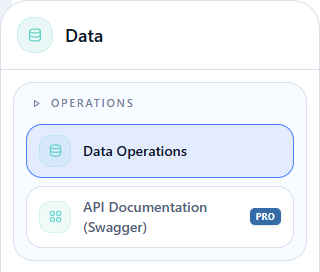
Hover over Data and click Operations > Data Operations in the flyout.
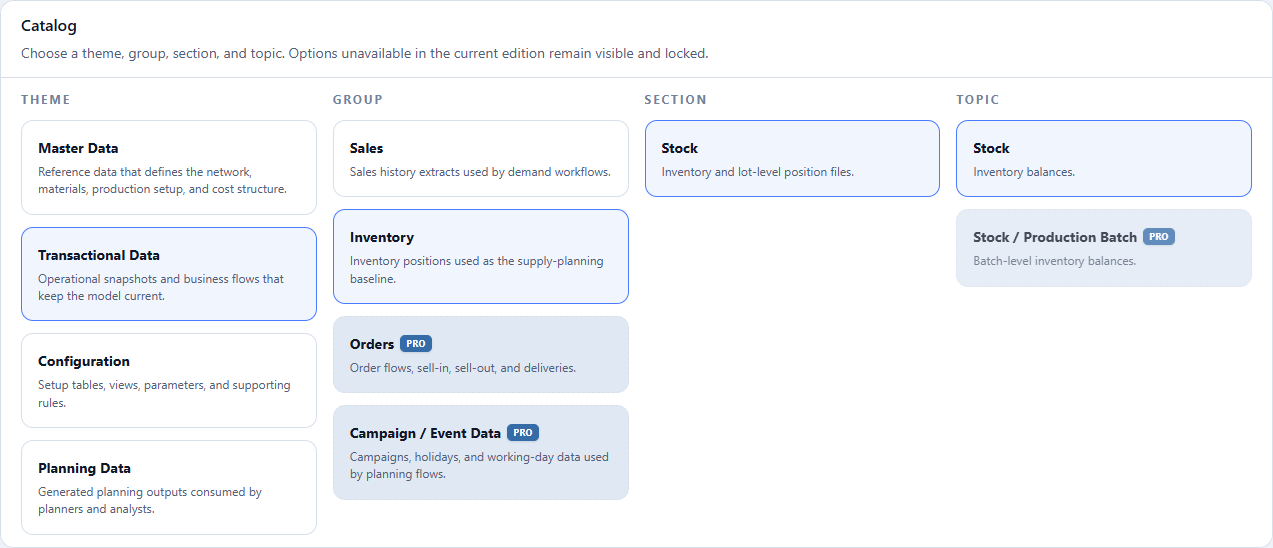
On the open page, select Transactional Data > Inventory > Stock > Stock.
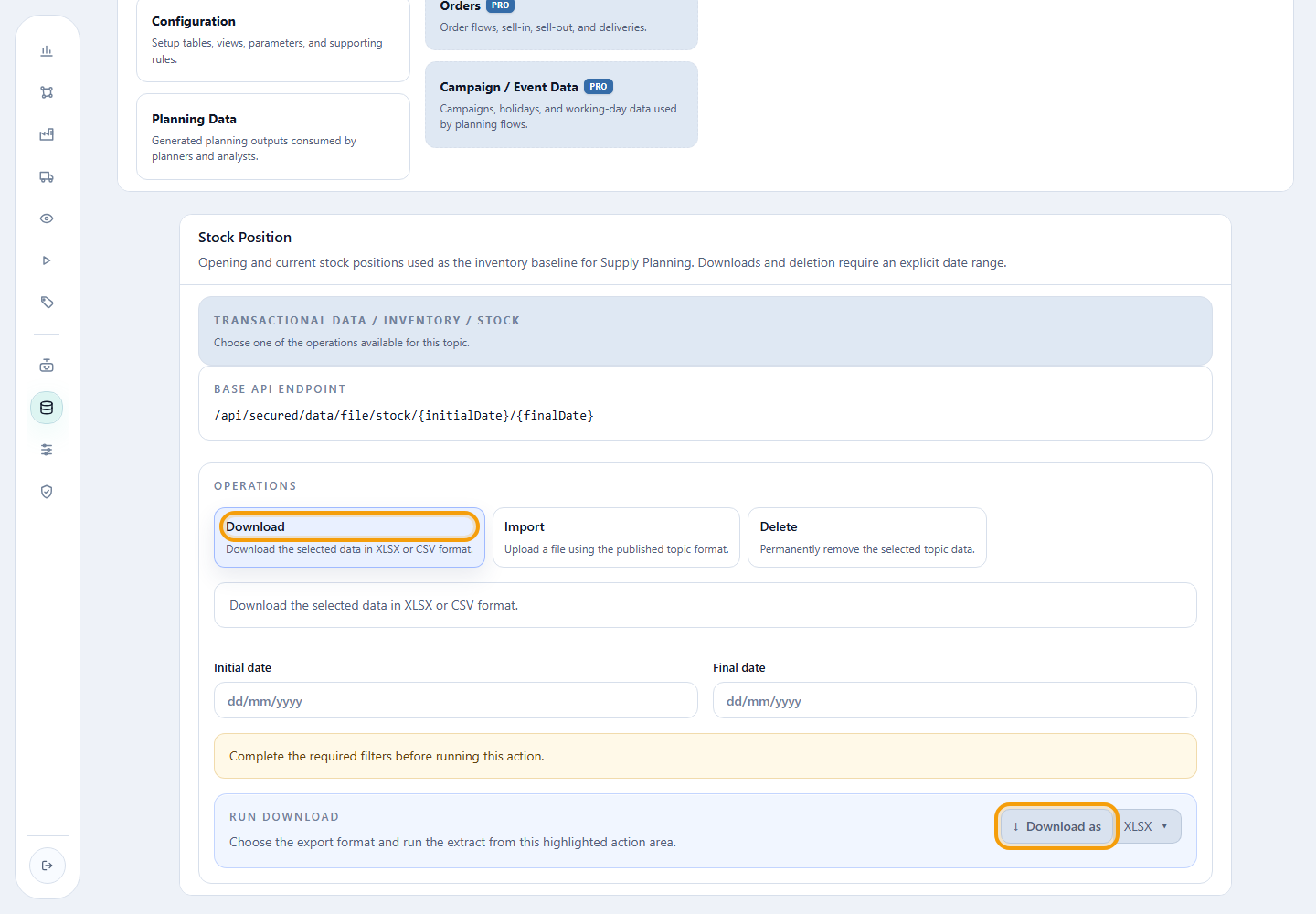
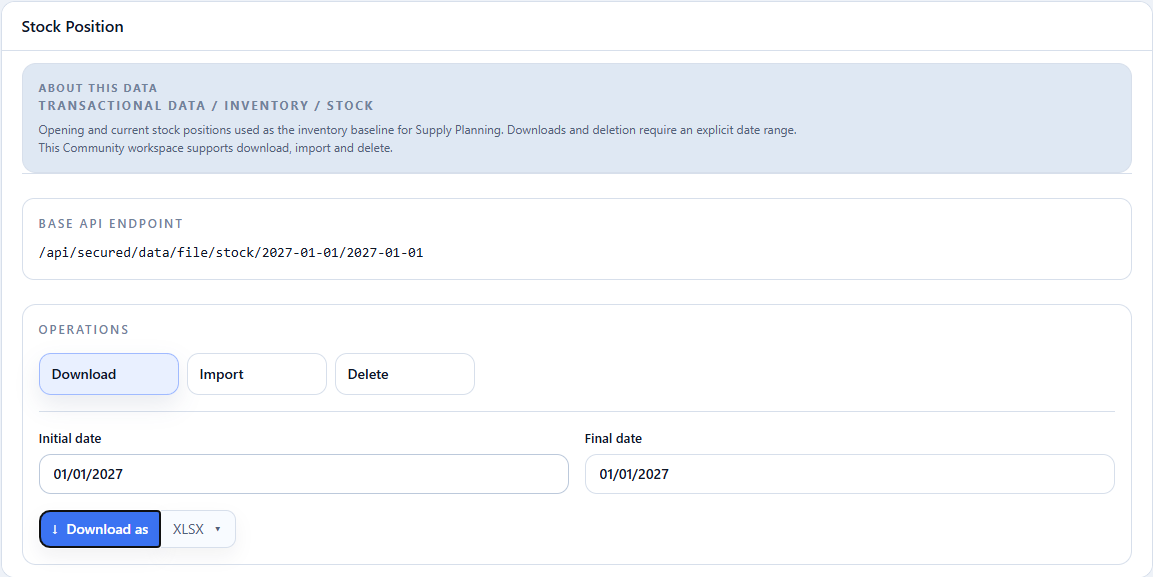
Select Download, enter 2027-01-01 as both the initial and final date, and
click Download as XLSX. The date range belongs to this topic's extraction
operation.
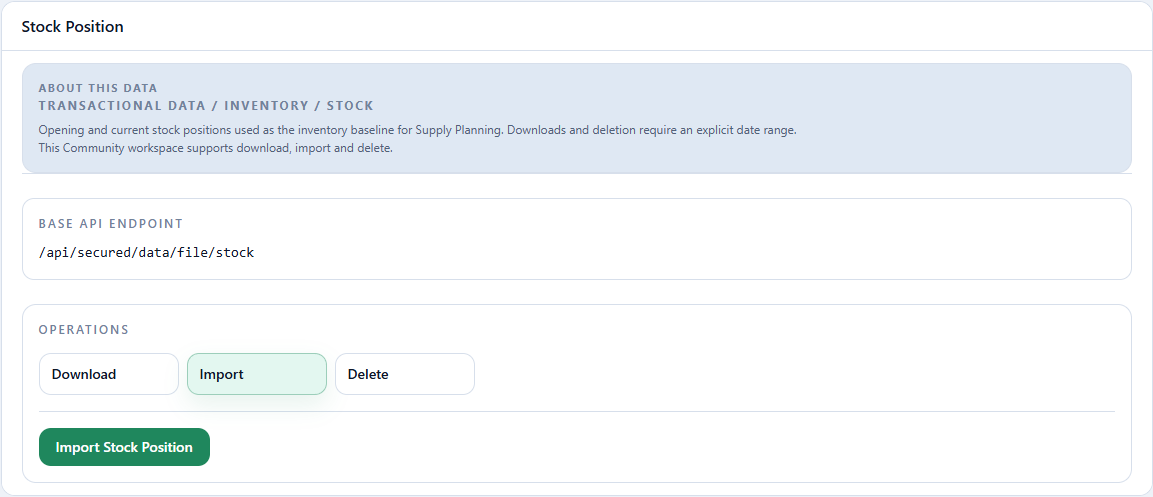
After checking the file, return to the same topic, select Import, choose the populated workbook, and click Import Stock Position.
1. Prepare the snapshot
13-initial-stock-2027-01-01.xlsx
Action required
Download the template, open the workbook, and check all five columns before importing all 20 inventory positions.
Transactional Data > Inventory > Stock > Stock.
Select Import, choose 13-initial-stock-2027-01-01.xlsx, and click
Import Stock Position.
Read-only excerpt of the original export: sheet Data, 20 data rows; first 5 shown below. Headers and values are preserved. This webpage table does not alter the XLSX.
| Location Id | Material Id | Reference Date (stock at the start of the reference date) | Unit of Measure Id | Quantity |
|---|---|---|---|---|
| CD_INTERIOR | PA_BRANCO_75_A4_100 | 2027-01-01T00:00:00 | TON | 25.716 |
| CD_INTERIOR | PA_BRANCO_75_A4_50 | 2027-01-01T00:00:00 | TON | 26.247 |
| CD_INTERIOR | PA_BRANCO_75_CARTA_100 | 2027-01-01T00:00:00 | TON | 26.868 |
| CD_INTERIOR | PA_BRANCO_75_CARTA_50 | 2027-01-01T00:00:00 | TON | 27.425 |
| CD_INTERIOR | PA_BRANCO_90_A4_100 | 2027-01-01T00:00:00 | TON | 26.939 |
| Field | Meaning | Tutorial value |
|---|---|---|
Location Id |
Physical point to which the inventory belongs. | CD_LESTE or CD_INTERIOR |
Material Id |
Material available at the location. | one of the 10 finished goods |
Reference Date (stock at the start of the reference date) |
Date at whose start the quantity is available. | 2027-01-01 on every row |
Unit of Measure Id |
Unit of the stated quantity. | TON |
Quantity |
Available balance at the start of the date. | as listed for each combination in the file |
Use one row per material-location combination. Community Edition treats this inventory as aggregated; batches, expiration dates, aging, and shelf life are outside this topic.
2. Import and reconcile
Action required
- Under Stock, select Import.
- Choose
13-initial-stock-2027-01-01.xlsx. - Click Import Stock Position and read the platform response.
- Return to Download.
- Enter
2027-01-01in both date fields and download XLSX again. - Compare location, material, date, UOM, and quantity across all 20 rows.
Checkpoint: locate the 20 positions from the file in the extraction and check their keys and quantities. Existing positions on the same date can also appear in a complete download; preserve them and compare the tutorial subset. If a row or quantity differs, stop and correct the data; do not silently turn missing inventory into zero.
3. Keep the snapshot ready for the profile
The upload registers the positions. In chapter 15, the execution profile will enable Use transactional inventory as the starting point of the simulation. Imported data and an enabled profile option are separate checkpoints.
Final Supply data checklist
- production and capacity loaded in the correct order;
- network version, lanes, and allowed materials reconciled;
- effective 5-day policy header and details reconciled;
- initial inventory exactly on
2027-01-01; - consistent units across every file.
Completion criterion
Complete the chapter when the 2027-01-01 Download reproduces the 20 positions
in the tutorial subset, even if other records exist in the environment.
Return to the inventory policy, or continue to 15. Configure the Supply execution profile.