5. Demand Planning execution profile
The Demand Planning execution profile defines the plan's general settings. In Community 2026.09.22, the profile references a Calendar profile: the calendar determines the bucket size and horizon. The statistical model, historical window and split are configured per cluster combination in chapter 6.
Create the monthly calendar
- Open Configuration > Calendars. The page title is Calendar profiles.
- Create
CAL_TUTORIAL_MENSAL_12, with descriptionCalendário mensal do tutorial — 12 meses. - Select Bucket size = Monthly and Number of periods = 12.
- Save and verify the monthly bucket and 12 periods in the catalog.
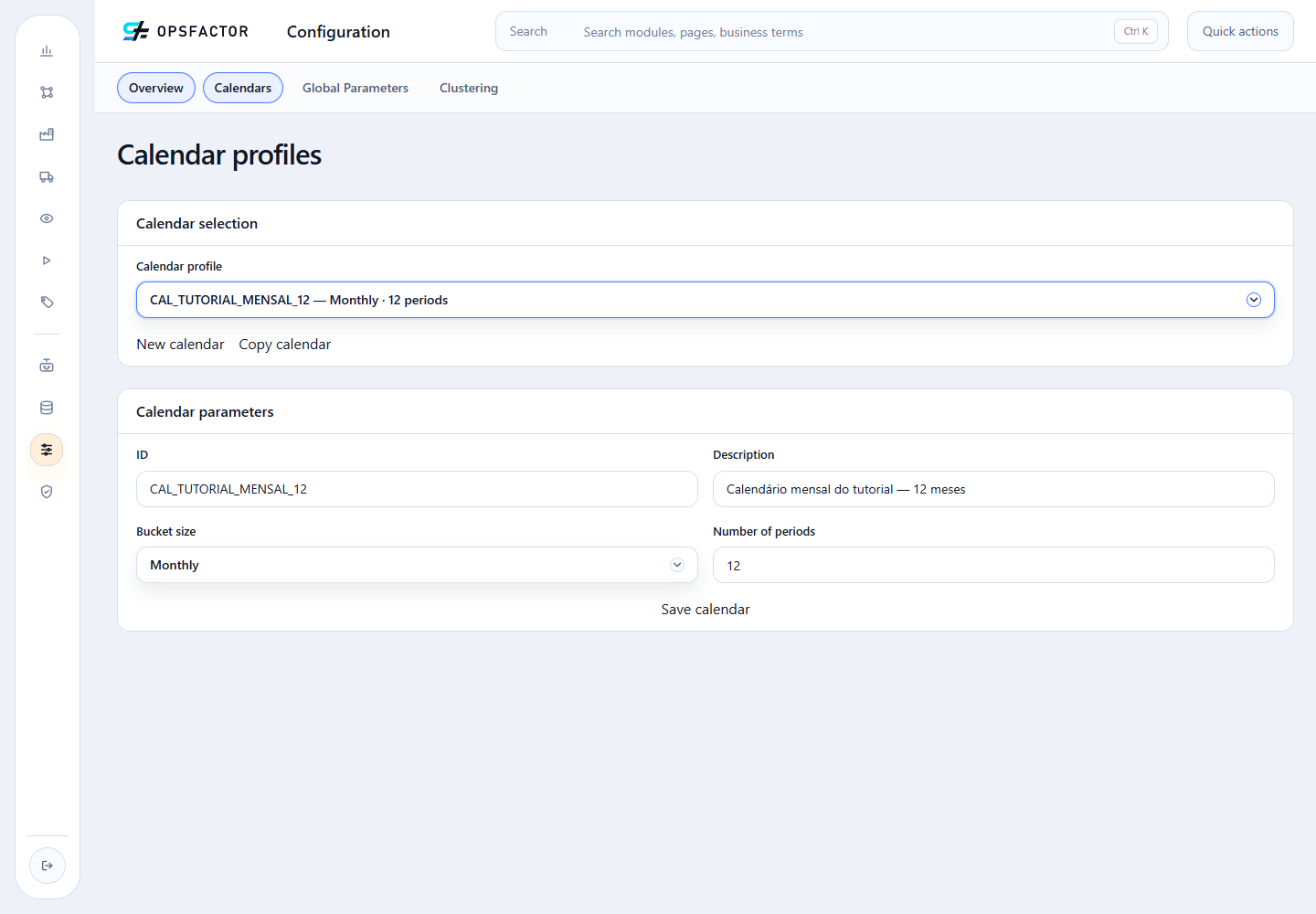
The calendar is reusable. In this scenario, the demand and Supply Planning profiles reference the same calendar to keep their horizons aligned.
Create the demand profile
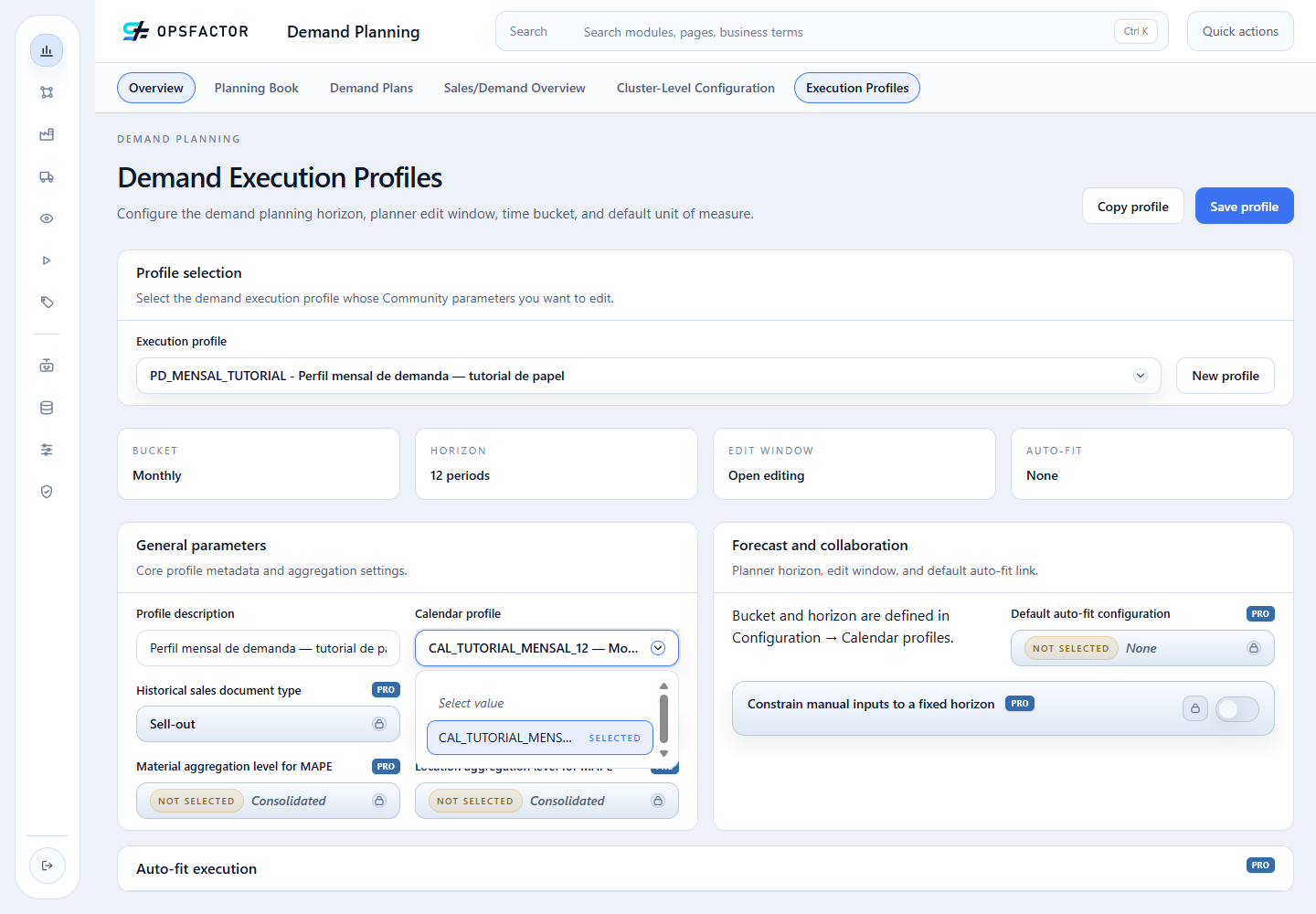
- Open Demand Planning > Execution Profiles.
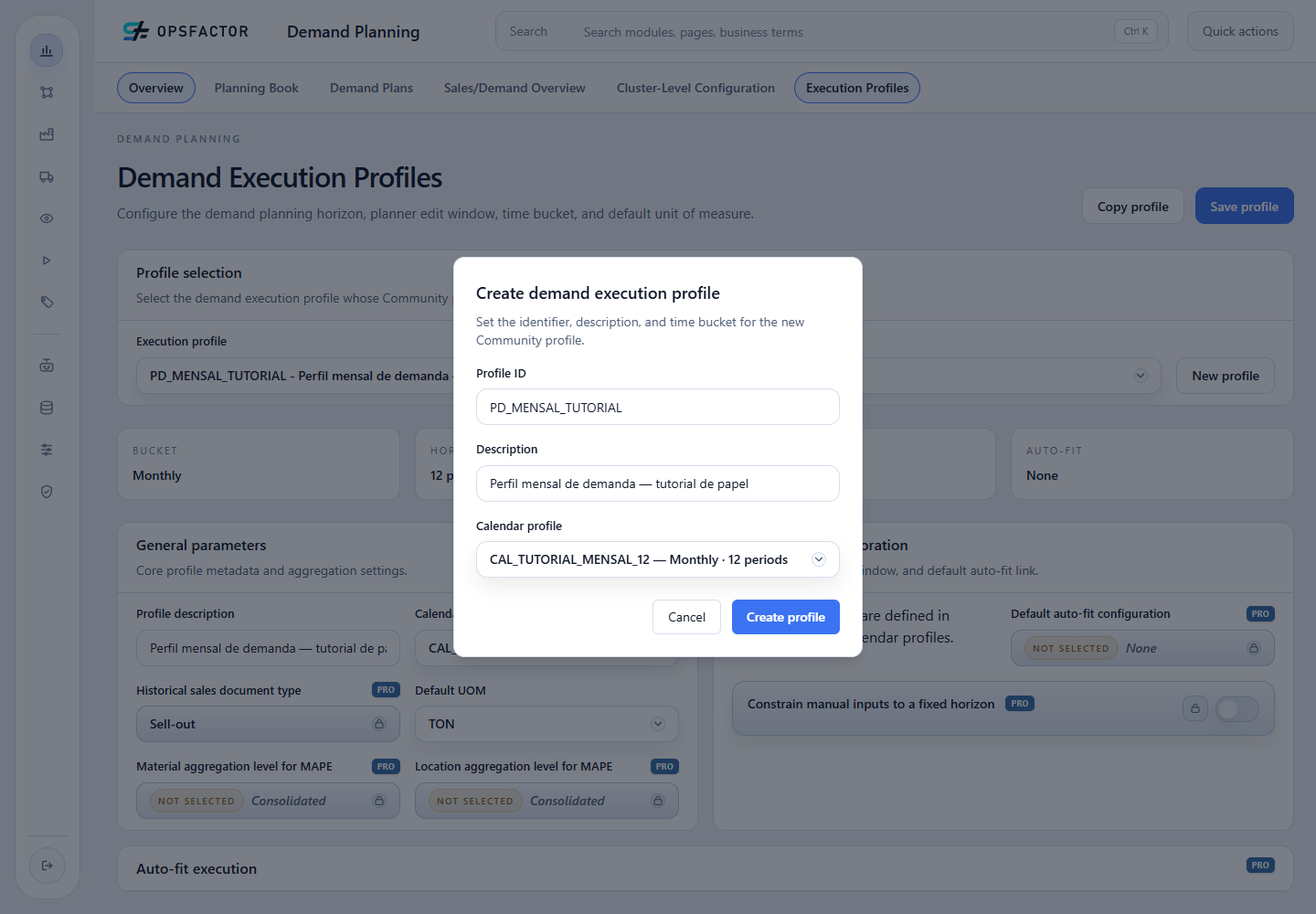
- Click New profile and enter the Profile ID
PD_MENSAL_TUTORIAL. - Enter
Perfil mensal de demanda — tutorial de papelin Description. - Select
CAL_TUTORIAL_MENSAL_12under Calendar profile. - Confirm creation and select Default UOM = TON.
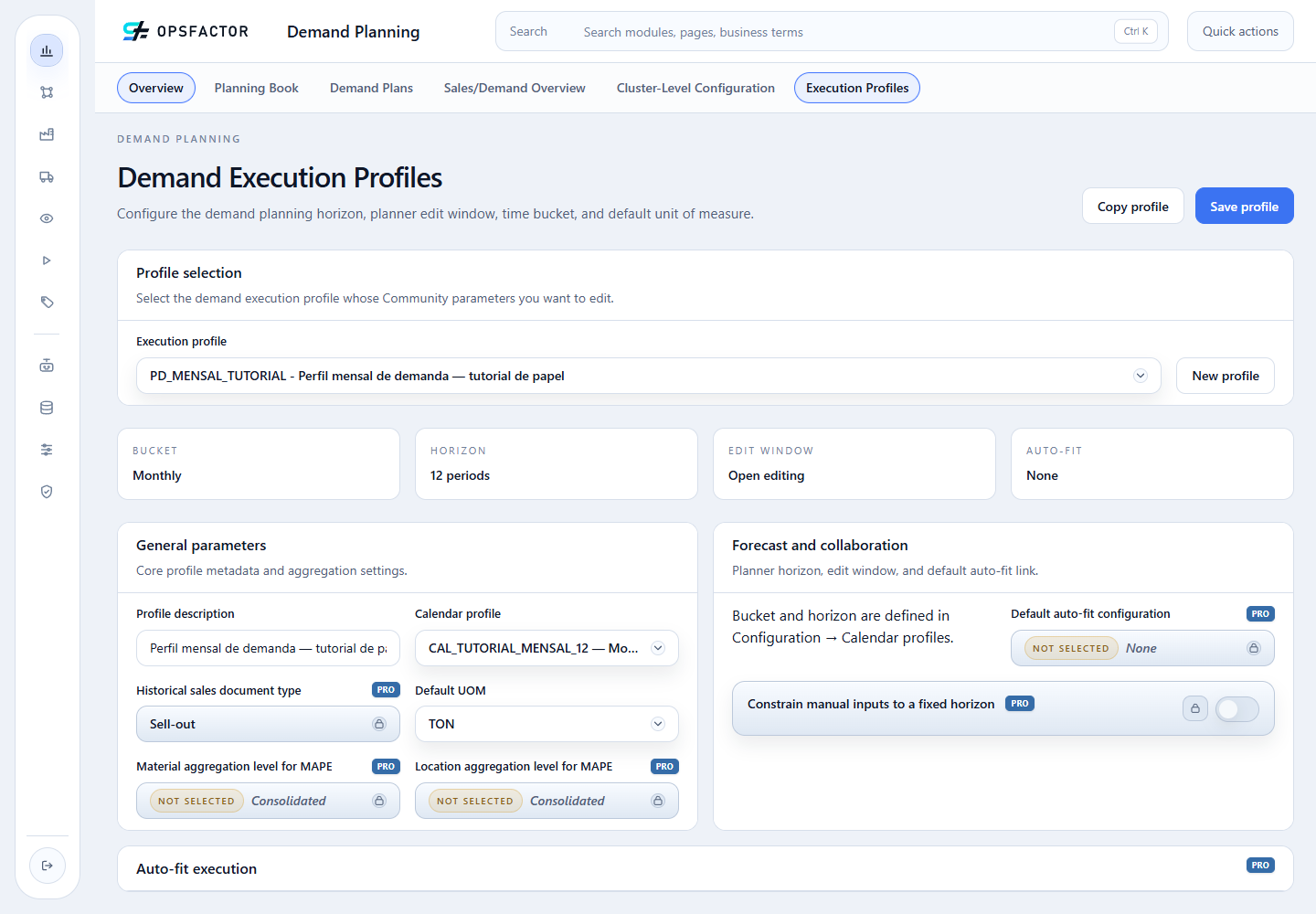
- Click Save profile and reload the profile to verify the result.
Check the general settings
The saved profile must show Monthly, a 12-period horizon and TON. The bucket size and horizon come from the selected calendar; to change them, review the calendar under Configuration > Calendars. Cluster configuration can use another unit when a conversion has been registered.
Checkpoint
- calendar
CAL_TUTORIAL_MENSAL_12saved withMonthlyand 12 periods; - profile
PD_MENSAL_TUTORIALlinked to the calendar and reloaded from the server; - default unit TON, also used by the two cluster configurations.
Return to the course map or continue to 6. Manual statistical configuration.